Annotating images
To assign classes to the unclassified images click on the Annotate button. You can choose between "Grid Annotation" and "Detail Annotation"
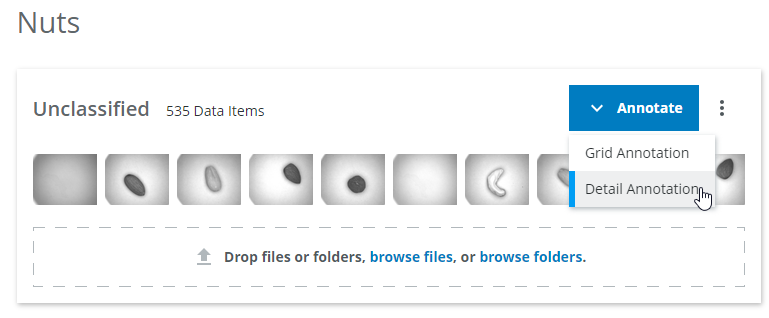
Detail Annotation
First choose Detail Annotation.
You are redirected to another page where an "annotation job" has been created.
Annotation jobs
To structure the annotation work an annotation job holds all the data of a domain when it is created. You can send the link to a colleague to help with annotation (see Collaboration), multiple people can work on an annotation job at the same time.There are predefined hotkeys which will make it faster to annotate the images.

By pressing the a, s or d key you can select which type of nut is shown on the image.
Review or change the hotkeys
Click on the burger menu in the annotation job and select "Show Annotation Job instructions" to see the hotkeys. Click on the edit icon next to the Automatic Hotkey Set to review or change the hotkeys.Press Enter to save the image and go on to the next one.

On the bottom you can see how many images are left to do.
Note, that you have been redirected to the advanced data handling service which is shown in a separate window. You can see a lot of options on the left panel, but you can ignore those for now.
Find out more about advanced data handling
The underlying dStudio data handling service provides many useful options to further structure data for example:- Sharing data with colleagues
- Annotating data with metadata, like the source of the data
- Filtering data and creating snapshots of subsets of the data
Annotate a few images, then click on the "Open in dStudio" button in the navigation side panel to return to the Domains page in dStudio. You can see now, the images are sorted in their respective classes.
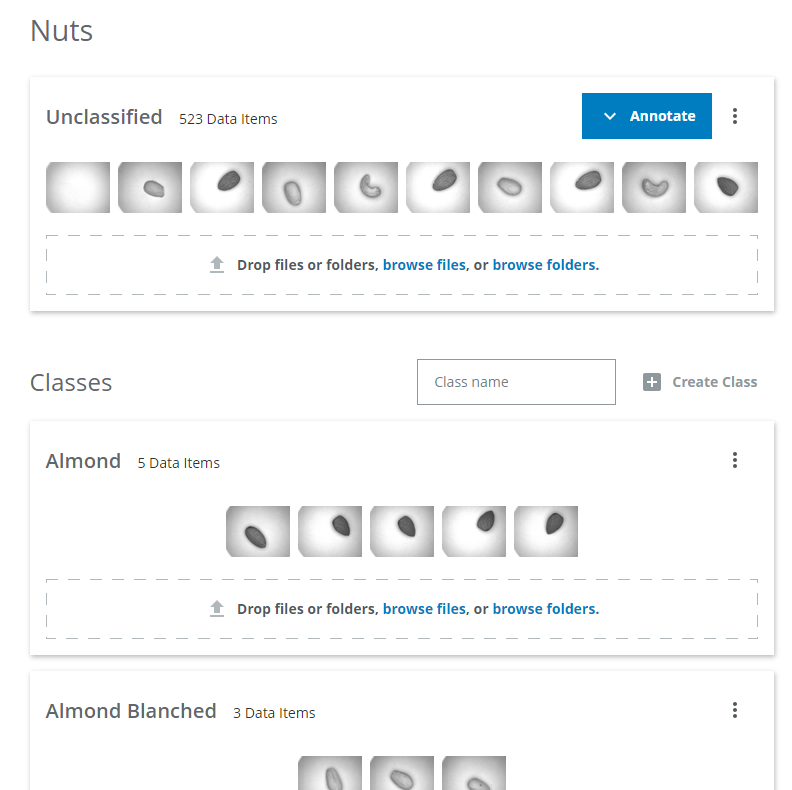
You can return at any time to the annotationjob by choosing the Detail Annotation again.
Grid Annotation
Click again on the "Annotate" button, but choose "Grid Annotation". You will be redirected to an annotation job where you can see a lot of images at once. You have the same hotkeys as before, but now you can select images that belong to one or the other class. Select a class via hotkey or by clicking on it. Then select the images that apply to this class.

You can also give all images the same class by using the check all button (double checkmark).

This makes sense if you have a lot of the same images on one page

Depending on the ratio of you images (landscape or vertical) it may make more sense to have a 3x5 grid instead of a 5x3. You can change the ratio in the menu

How to change the color of the classes
For this feature please complete the extended tutorials tutorialsHow to set a default marker
For this feature please complete the extended tutorials tutorialsAnnotate images later
If you want to skip images, because it is not clear what is displayed on the image you can choose to annotate it later.
In the detail annotation job click on the "Annotate Later" button next to the save button. They will be moved to the "Annotate Later Queue", which you can see when clicking on the menu and selecting "Annotate later queue". When you save annotations in the "Annotate Later Queue" they are moved back to the main queue.
In the grid annotation job click select "Annotate Later" and mark the images you want to annotate later. They get a red border. You will see a popup, that warns you that one or multiple annotations are missing. Click "Skip missing" to move the images to the Annotate later queue.
Reviewing annotations
Learn more about how to set up an Annotation Job for reviewing annotations in the Review Jobs section.
Collaboration
If you want help with annotating data you can share the domain with a colleague.
Open the domain by clicking "Manage domain" in the top right menu.

Click on the Members tab in the left panel and add the SICK ID of the colleague you want to give access to the data.

Select one of the roles Manager, User, Annotator or Guest for the new member of the domain and click on "Save".

Find out more about the member roles
Annotator
An Annotator- can view annotation jobs they are added to
- can annotate data through their annotation jobs
- does not need a subscription
Guest
A Guest can- browse data
- use existing exports
- view the domain definition
- duplicate the domain definition (without the data)
User
A User has all the permissions of both Guest and Annotator, and can additionally- upload data
- annotate data
- create exports
- create and edit annotation jobs
User
A Manager has all the permissions of a User, and can additionally- edit domain members
- edit domain access filters
- edit the domain definition
Owner
The Owner is ultimately responsible for the domain. A domain can only have one Owner and by default this is the creator the domain. The Owner has all permissions of a Manager, but is additionally the only one who can delete the entire domain. The Owner can also transfer their ownership to another member.Important
Some features might be restricted to certain subscription levels.Note, that you can add any user with a SICK ID as an annotator to help annotate the data without having to purchase a subscription for them.