Creating an Annotation Job (dTag)
An Annotation Job can be automatically set up in the dStudio workflow, but it can be manually set up in dTag as well. Using the dTag approach is recommended if you:
- Only want to label one or some of the classes.
- Want to filter the images to be included in the Annotation Job based on some additional information - eg. only include images from a certain site, from a certain camera type, etc.
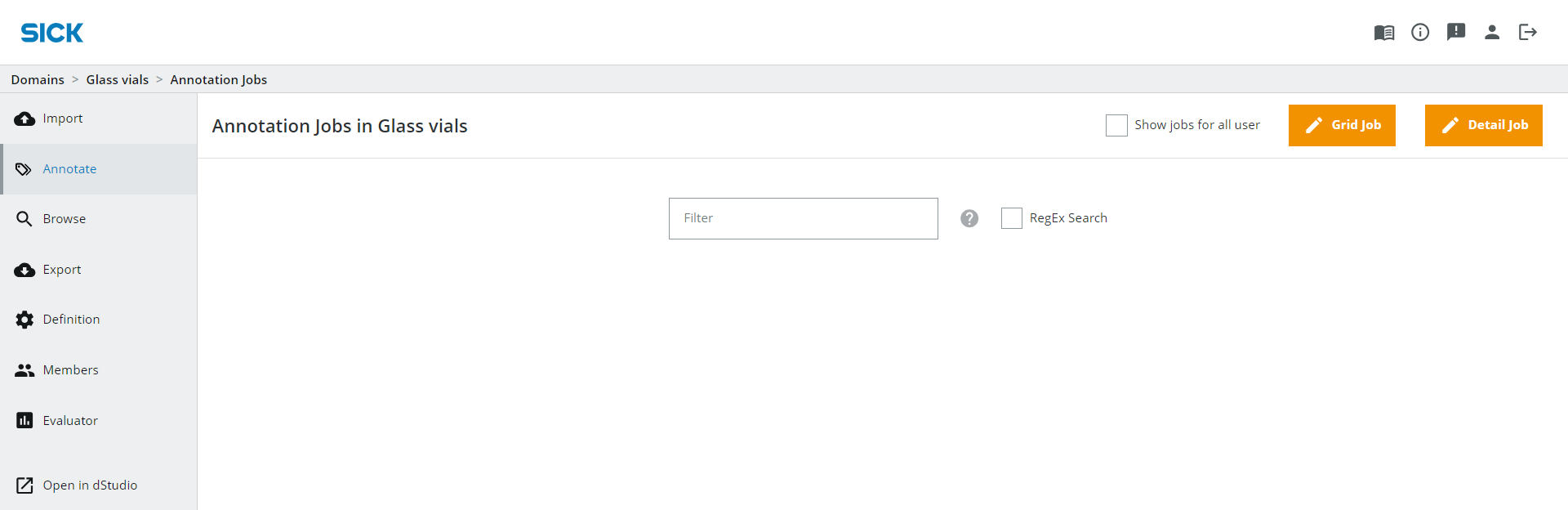
Go to the Annotate tab on the left hand side. In order to annotate images for Object Detection or Instance Segmentation, only one image can be annotated at the time. Therefore, you need to choose Detail job on the top right .
Name your Annotation job something suitable and add an optional description.
Under the "Segmentation - Which classes do you want to segment?" tab, press "Add segmentation class" and choose which classes you want to include. In this example we only want to include the flipped vials classes, but you can also add all classes by pressing the All option instead. This will add all the six classes we defined in the Domain creation stage.
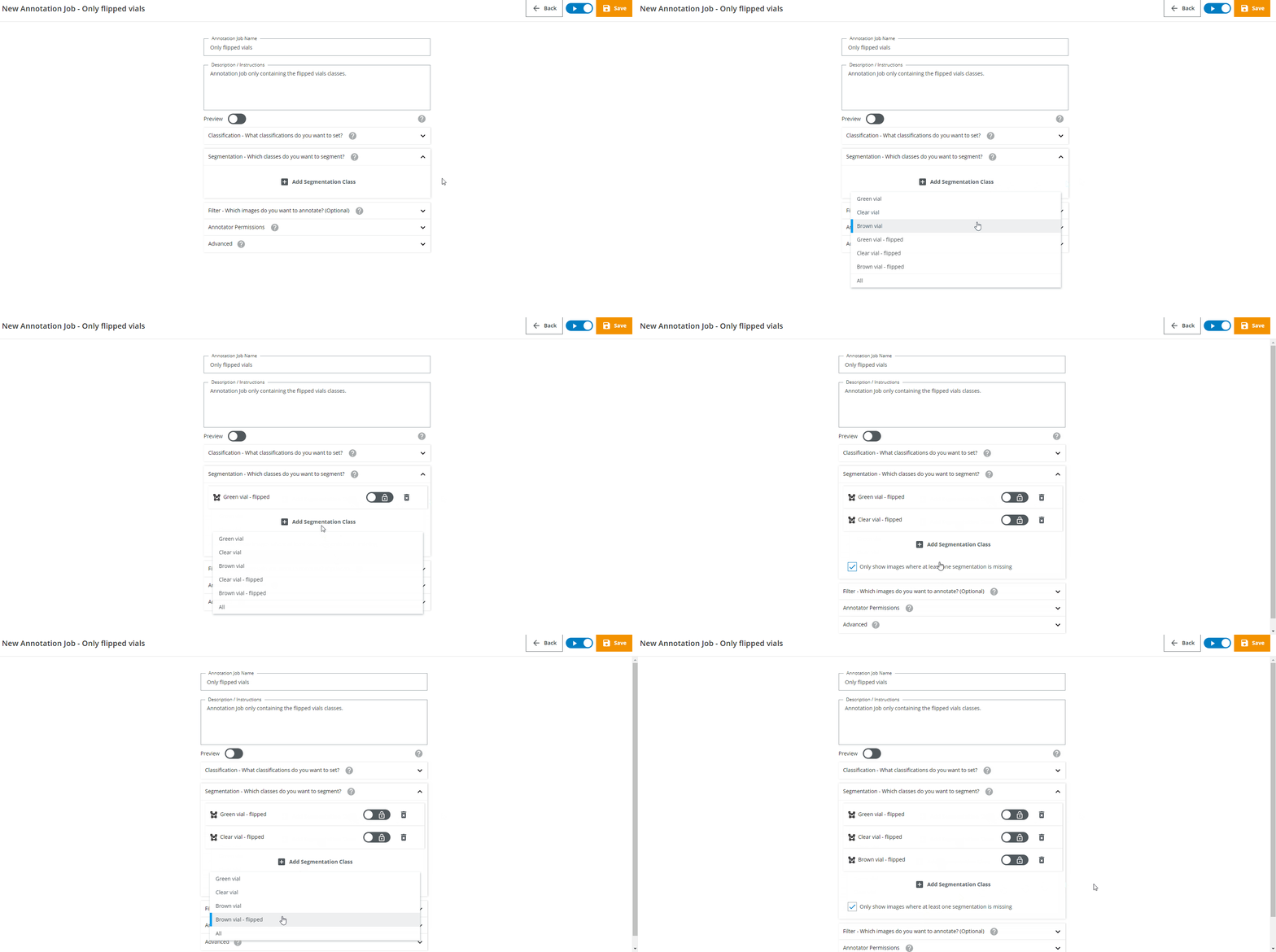
You also have the option to "Only show images where at least one segmentation is missing", to prevent the annotator from seeing images that have already been annotated. This is also shown in the filter where an automatic filter is set if this checkbox is checked.
You can also set additional filters based on other variables or information.
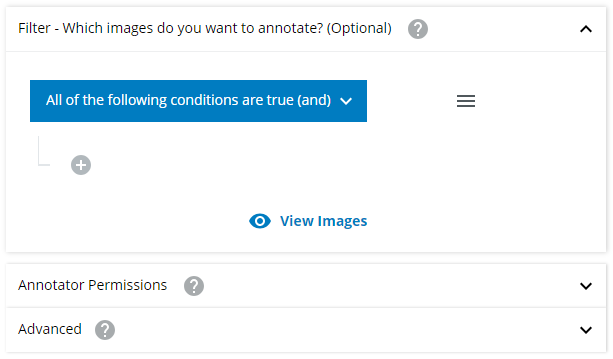
Under Annotator Permissions you can define which Members of the Domain are permitted to annotate in this Annotation Job. You can learn more about how to add Members and how to set their Roles in the Collaboration section.
In the Advanced section you can decide if the images should be shown in a shuffled order or not.
Don't forget to press the Save button on the top right once you are done with setting up the Annotation Job.
More on Annotation Jobs
An annotation job holds a set of data items that are to be annotated. For every annotation job the user specifies the variables that are to be annotated. Annotation jobs are meant to be a tool for prioritizing the work of different annotators or different annotations. If you need only a few annotation variables annotated right now and you need them quickly you don't need to let doing all possible annotations slow you down. You can drag and drop the annotation jobs to change their order and make it easier to show the most important ones on the top.Reviewing annotations
Learn more about how to set up an Annotation Job for reviewing annotations in the Review Jobs section.