How to start a training
Using the data for training
Go to dStudio and create a snapshot of the current annotations and data by giving it a name and clicking the "Create Snapshot" button.

It will take a few seconds to prepare the data and create the snapshot.
Snapshots
When creating a snapshot the data and its respective annotations is "frozen". If you change data later, for example when correcting mislabeled data or when having added more data, you have to recreate the snapshot and redo any training to incorporate the corrected or new data.


Prepare the data
Click on "Create Project" and you will be redirected to the next step where you can define augmentations. You can choose the default augmentations which apply some small changes to the images like slight scaling, rotation, mirroring and so on. This is done to artificially create more data in order for the neural network to become more robust. Click on "Use default augmentations" to move to the next step.

In most cases you can use the default augmentations, but if you want to choose custom augmentations click on "Define custom augmentations". You can click on the little info boxes to learn more about what changes are applied to some of the images and which values to choose. Change the values to your liking and click on "Next" to move on to the next step.
Choose a network
We propose to use the "Medium" network with input image size 256x256 as a default. If you select a Benchmark Device you can see the average time to process an image. If this does not match your speed limitations, click on "Show all networks and you can see the different network sizes and different image input sizes and their processing time. Select a network that matches the speed limitations. Click on "Next" to move on to the next step.


Find out more about the network sizes
What network size is the best depends on your application requirements and the variation in your data. The larger the network, the better it is expected to perform, but with the drawback of a slower runtime. A good rule of thumb is to start off by trying out the 'Small' network and successively increase the size until satisfactory accuracy is achieved.Start the training
Choose a verbose name for the training project and click on "Create Project".
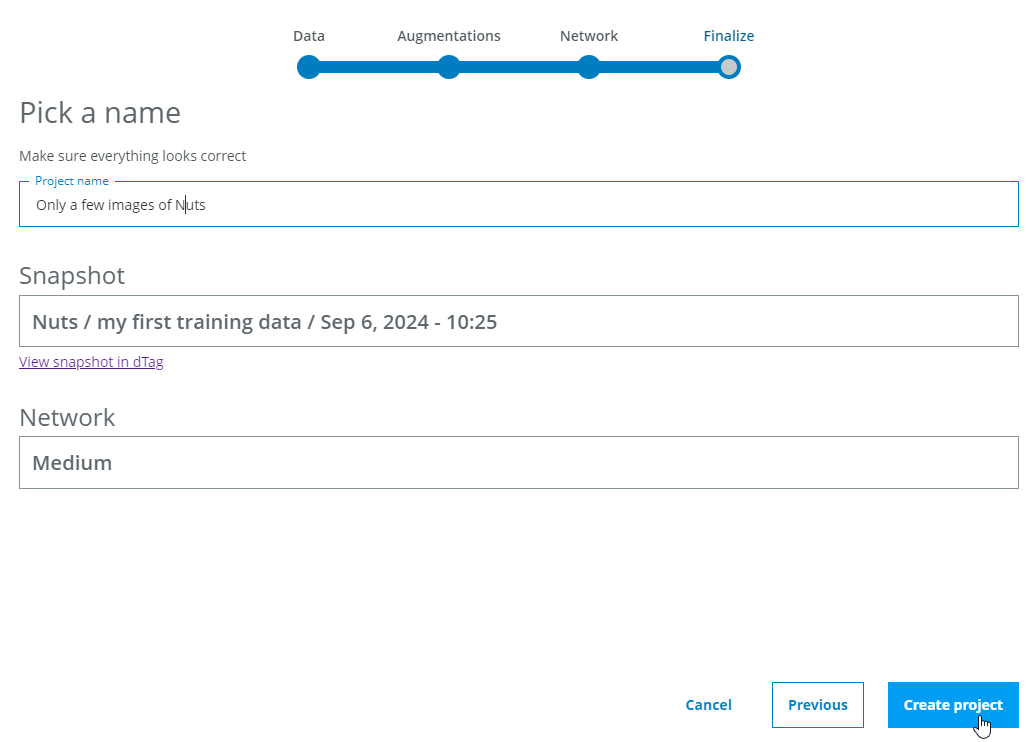
The training starts automatically.

Training a model usually takes between 15 and 30 minutes, but depending on the problem difficulty and the size of the dataset it may take many hours.
During the training you can see the accuracy on the validation set (20% of the images that were annotated) and on the training set (80% of the annotated images).

The training will stop automatically when it's no longer improving.
You can also manually abort the training when it's running, but note that it's not possible to resume an aborted training session and no results from it will be stored.